
Photo List
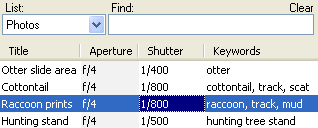
The Photo List displays a list of all of the photos in the file.
Showing the Photo List
To show the Photo List, do one the following:
- On the , click .
- Select Photos in the List Selector at the top of the current list pane.
Selecting Photos
Click on a photo in the list to select it. To select a range of photos, click on the starting photo, hold down the Shift key, and click on the ending photo. Hold down the Ctrl key to add additional photos to the selection.
Sorting
To sort the photos, click on a column header above the list. To reverse the sort order, click the same column header a second time.
Adding and Removing Columns
To add or remove columns from the Photo List, right-click the column header, or click on the .
Changing the Width of Columns
To change the width of a column, drag the separator to the right of the column in the column header.
Printing
To see how the Photo List will look when printed, click on the . You may need to change the width of some columns or remove columns to make your photos fit correctly on the printed page.
Related Topics



© 1998-2024 TopoGrafix – 24 Kirkland Dr, Stow, MA – Email: support@expertgps.com