
Go to Menu
The Go menu contains commands to recenter the map.
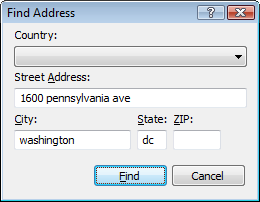
- Go to Address
-
Converts an address into geographic coordinates, and creates a new waypoint at that location.
- Go to Active Point
- Recenters the map on the Active Point.
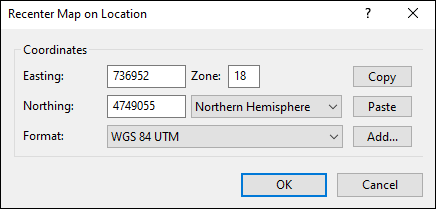
- Go to Coordinates
-
Recenters the map on the coordinates you enter.
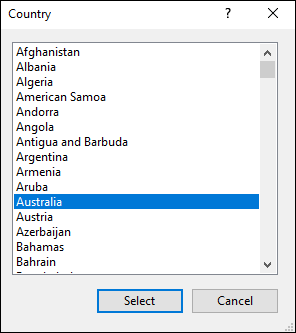
- Go to Country
-
Recenters the map on the country you select, at the approximate location of the capital city.
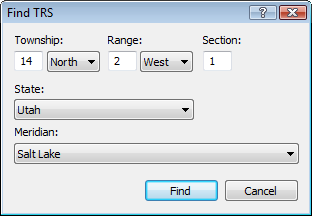
- Go to Township, Range, Section
-
Recenters the map on a township, section, and range in the US Public Land Survey System (PLSS).
- View Online
- View online maps and related resources for the selected item.
- View in Google Earth
- View the data on the map or in the list in Google Earth.
- See the View From Here in Google Earth
- See the panorama from your favorite mountain peak in Google Earth, or visualize the view from any point along your intended trail.
- View in List
- View the selected items in the List view on the left side of the screen.
- View on Map
- View the selected items on the Map.
- Go to the Start Point of the Selected Track
- View the start of the selected track on the Map.
- Go to the End Point of the Selected Track
- View the end of the selected track on the Map.
- Add to Favorites
- Adds the selected object to the Favorites sub-menu, which allows you to quickly recenter the map on your favorite locations.
- Organize Favorites
- Opens the Favorites folder.
- Favorites
- Recenters the map on the saved location.
Related Topics



© 1998-2024 TopoGrafix – 24 Kirkland Dr, Stow, MA – Email: support@expertgps.com