
Map Display Options Dialog
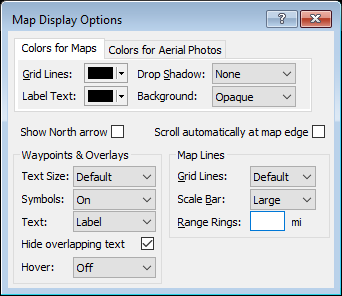
Use the controls on the Map Display Options dialog to customize how objects are displayed on the map.
Colors for Maps / Colors for Aerial Photos
You can choose different text and grid line colors to use when drawing items on the maps and aerial photos in ExpertGPS. Choose colors that make your GPS data easy to see against the background. If the aerial photos for your area have lots of dark green foliage, you might want to use white grid lines instead of black, for example.
- Grid Lines
- Choose a color to use when drawing the grid lines on the map.
- Label Text
- Choose a color to use when labelling your GPS data on the map.
- Drop Shadow
- You can make your data stand out off of the background map by adding a drop shadow.
- Background
- Select the type of background to draw behind text labels:
- None
- The label is drawn without any background.
- Transparent
- The label will be drawn on a transparent (50% opaque) background.
- Opaque
- The label will be drawn on a solid (100% opaque) background.
- Framed
- The label will be drawn on a solid background with a box drawn around it.
- Show North Arrow
- Your map will have a diagram in the lower right corner showing True North, the magnetic declination for Magnetic North, and if you have selected a rectangular coordinate grid like UTM, the offset to Grid North.
- Scroll automatically at map edge
- To automatically scroll the map when the cursor is placed near the edge of the map, check Scroll automatically at map edge. Use this setting while drawing long routes or tracks to reduce the need to switch to the Move Map tool every time your path takes you off the edge of the map screen.
- Text Size
- To increase the size of labels on the map, choose a larger text size. To hide all text on the map, choose Hide All.
- Symbols
- To display a small crosshair at the waypoint location, instead of the larger waypoint symbol, select Off.
- Text
- Select the waypoint data field to display on the map. To turn off waypoint text on the map, select Off.
- Hide Overlapping Text
- When selected, ExpertGPS will automatically remove hide text labels that would have been drawn over the top of other text on the map. Zooming in or changing the position of some text labels can prevent overlap.
- Hover
- Select the data field to display when the cursor is hovering over an object. If the hover text obstructs your view of the map, select Off.
- Grid Lines
- To change the number of grid lines on the map, change the Grid Lines setting. Select None to display the map without grid lines.
- Scale Bar
- Select the type of scale bar to display:
- None
- Do not display a scale bar on the map
- Large
- Display a large bar, selecting the most appropriate scale unit automatically

- Small
- Display a small bar, selecting the most appropriate scale unit automatically

- Range
- Display a small bar, using Range Rings distance as the scale unit

- Range Rings
- To draw a series of five concentric rings on the map, enter a distance. Use the range rings to quickly determine the distance of objects from the Active Point. When you no longer need the range rings on the map, clear the Range Rings edit box to remove the rings from the map.



© 1998-2024 TopoGrafix – 24 Kirkland Dr, Stow, MA – Email: support@expertgps.com