
GPS Settings Dialog
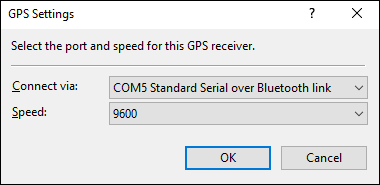
To show the GPS Settings dialog, do the following:
- Do one of the following:
- On the , click .
- Press Ctrl+Shift+P.
- Click on the My GPS Receivers tab in the Preferences dialog.
- Select your GPS receiver, or Add your GPS to the list.
- Click .
- Connect via
- Select the connection type for this GPS:
COM1, COM4... - Select if your GPS has a serial port (or if you use a USB to serial adapter to connect to your GPS).
File - Select if your GPS uses a removable memory card and a card reader.
USB - Select if your GPS receiver has a USB port. - Speed
- If your GPS receiver has a serial port, select the baud rate that your GPS uses.
Notes
- If you use a USB to Serial Port adapter to connect your GPS, the adapter will include software which creates a virtual COM port on your computer. Select this COM port in ExpertGPS.
- If you own a Garmin eTrex model, select the C model if your GPS has a USB port (Garmin eTrex Legend C, e.g.).



© 1998-2024 TopoGrafix – 24 Kirkland Dr, Stow, MA – Email: support@expertgps.com